
Brainstorming About Brainstorming
Why Food for Thought is Better than Next Best Action

There are many possible uses for AI in CRM, and one of the most common ones you’ll see is something that tries to make the life of the sales rep easier. Salesforce Einstein GPT, for example, will offer to write emails for reps.
But this is often a tactical kind of thing, and at times what reps need is more strategic, more akin to account planning. For today’s post, I offer you something in that vein, a brainstorming application of AI where it provides not final content, but some ideas to help a rep advance a deal if they’re feeling stuck.
Whereas in our previous demo we just accepted input from the user and sent it on, this time we’re using actual live data from the CRM system to form part of our input to ChatGPT. As you can see from the video above, ChatGPT knows who the key contacts are at our customer and comes up with ideas that are germane to the roles they’re playing in the deal cycle.
For this post, we’ll look at the assets needed to implement this (which you can download from a GitHub repository) and how it’s all put together. As with so many other things, figuring out how to make it work is a lot harder than actually doing it, but if you’ve been following along with previous posts you’ll find the incremental effort is quite small.
Implementation Overview
As with previous posts, I’ve used Salesforce with OmniStudio (the former Vlocity) to build this demo. Here’s a flow-chart showing how the demo is constructed:

The OmniScript orchestrates the process, and starts by calling a Data Raptor to retrieve key information about the opportunity. It displays some of that data to the user, but mostly uses the data as part of our prompt to feed OpenAI. After OpenAI returns its recommendations, they are displayed to the user, who slaps their forehead and shouts “why didn’t I think that?”1
While this is still a fairly simple flow, it’s getting to be more and more sophisticated and generally is on a par2 with a lot of production offerings that are out there.
The great thing is that this re-uses an Integration Procedure we’ve already built — we’re starting to get some leverage from our resources.3
As always, there’s just a bit of a challenge to get our data in and out of the formats GPT wants, and there’s a couple of cheap tricks4 to display the results without any code.
If you want to stay on a par with technology, you’ll want to subscribe!
Pre-requisites
I expect you’ll already have the following up and running:
An OmniStudio enabled Salesforce org. If you do not have one, the following post discusses how to get one for free:
An OpenAI API key to access their services. If you do not have one, the above mentioned post also discusses how to set that up.
A Named Credential for OpenAI already working5. If you need to review how to create one, this post walks you through the steps:


As easy as 1-2-3!
Setup and Testing
There’s a data pack with everything you need to get running (except the aforementioned Named Credential). You can grab it from my GitHub repository for this substack.
Download the .json file which matches your org’s namespace (either omnistudio or one of the vlocity_ name spaces) and import it as a data pack. Activate the Integration Procedure (only).
Go ahead and preview the OmniScript and for the Context Id give it a fairly well built out Opportunity (i.e., one with several contact roles defined on it). When you press the button, you’re get a list of 3 suggestions … eventually6.
Design and Observations
Let’s delve into the actual design and have a look at the nuts and bolts of it7. As mentioned above, the overall process is orchestrated8 by the OmniScript.
The first step of the OmniScript is to call a DataRaptor, OpportunitySummary, to return basic information about the opportunity and the contacts on the opportunity. Some of this information is displayed to the user in the OmniScript, but most of it is intended to be sent to ChatGPT.
The DataRaptor pulls data from Opportunity, Account, Contact Role, and Contacts to get some set of useful information about the state of the opportunity. In a full production build, there might be a lot more information that gets pulled to present a more comprehensive view of the opportunity, with a corresponding increase in complexity of the prompt engineering required to make use of that data.
When the DataRaptor returns, there are two Set Values in the OmniScript that will assemble our inputs into ChatGPT. The first is svContacts, which fishes out the list of contacts returned from the DataRaptor and formats them into a string. It’s a bit blunt, as it always assembles four contacts, so if there are fewer you get “null” entries in the prompt and if there are more they are ignored. A more polished approach, that was better at handling various size of contact lists would take a bit of code, I think9. But for our demo, it’s more than enough.
The next Set Values, svPrompts, builds up the two input prompts10 we need to send to ChatGPT to tell it what we want to do. The “System” prompt defines what the role is for GPT. The “Question” (aka User) prompt defines what we’re asking. The Set Values inserts details about the opportunity into the Question so ChatGPT can generate a response using the relevant names and details from Salesforce.
Only then do we get to the first and only step of the OmniScript. The step displays a header with information about the Opportunity in four Formula11 fields to provide some context to the user.
The Integration Procedure is not triggered automatically, but appears as a giant “Click to Brainstorm” pushbutton in the UI. The design of the integration procedure was discussed here:

When we get a response, it comes back in a variable named response. If you look just superficially at the text area, it seems to just have a %response% to bring the text in. But it’s not quite just that. If you view the source code of the text area, you’ll see the contents are:
<div style="white-space: pre-wrap;">%response%</div>
<p> </p>
<p> </p>That very sneaky style tells the browser that the text is pre-formatted. ChatGPT does not return HTML, but it does put newlines in the text to break it up. Telling HTML that the text is pre-formatted causes it to present the line breaks to the user rather than ignoring them. This produces a perfectly pleasing display:
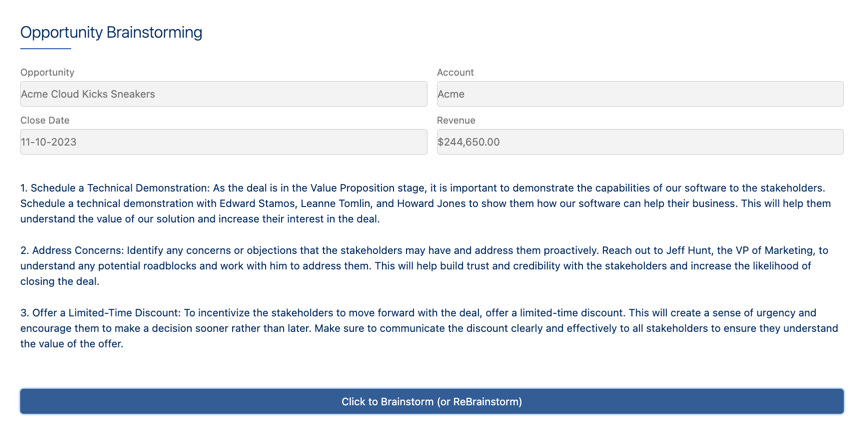
Could it be better? You betcha! Is it good enough for us at the moment? Yes it is!12
Some odd behaviors
This all works, and seems to work reliably. But only after some tweaking from the initial versions. When I was first building it, I asked for 5 to 10 ideas, and that worked13. But only in my omnistudio namespace org. In my vlocity_cmt org, it kept timing out. I cannot tell you why, other than that when I trimmed it back down to asking for 3 ideas it worked14. Unfortunately, OpenAI’s APIs are slow15, and that affects the kinds of problem we can solve. Eventually I’ll start looking at ways to address that (other vendors? use smaller/faster models?), but for the moment, just be prepared for the not-very-occasional timeout when you work with OpenAI16.
The reality is that OpenAI can be very sluggish. I definitely cheat with my videos, and edit out the long spinner interval and so it seems like it’s really fast. Sadly, it’s not.17
What next?
If you’ve gotten this working, you’ve demonstrated a ChatGPT integration pattern where you pull data from the CRM system, wrap it with a bit of the ol’ prompt engineering razzle dazzle18, and get something interesting back.
This pattern is applicable to a wide variety of problems. This demo is a very simple example designed to make illustrating the pattern easy, but it also has tremendous potential.
After you get this running, think about what other “augmented” prompts you can come up with. It’s a really simple but powerful pattern that will make you look like a wizard even if you’re basically doing the same thing over and over again.
On the off chance you want to reveal your secret source of GPT knowledge to a few trusted friends, why not share this post with others? I would really appreciate it!
This last part of the demo is a bit unpredictable.
Not as polished, of course. But polish is easy to add in. If you ever work with this guy, your implementations will have amazing UI/UX. Trust me, look him up. (I won’t say who he is right here to make it more likely you’ll click the link, because I’m manipulative in that way.)
I do include it in the datapack, however, for completeness.
🎵 Ain’t That A Shame 🎵
I did promise that, despite a named credential being a bit of a pain to get set up properly, it would pay dividends. And here we are — you can import my DataPack, and it will work with your named credential without any fuss like magic!
Performance is an issue; like a watched pot, OpenAI never boils when you’re waiting for it.
Perhaps also the chewing gum and dental floss in a few places.
Such a pretentious word in this case. This demo is more Improvisational-Jazz-Quartet-ed than Orchestrated.
One thing about OmniStudio is that it always has tricks up its sleeve, and there’s always a possibility I overlooked something that would be more flexible without needing code. It just wasn’t sufficiently important to me to figure that out for this demo, so I didn’t dig deeper. But I will also say that, with OmniStudio, there is always some point of no-code complexity where a bit of code is actually a lot simpler.
That is, the System role and the User role, although here I have labeled User as Question because, well, it seemed like a good idea at the time. I have some regrets about that now.
Why Formula fields? Because they’re an efficient way of fishing information out of of the block of data the DataRaptor returned and then displaying it read-only. I admit the formatting isn’t the prettiest, but it’s good enough.
Good enough is a goal that in this world is frequently production worthy.
Which is why you see 10 recommendations in the video.
I don’t know why, but I have some ill-informed guesses: (a) Perhaps OpenAI throttles calls on the basis of the caller’s IP address, and my omnistudio org is on a server that doesn’t make a lot of calls to OpenAI but my vlocity_cmt org is. (b) There’s some org-wide setting I haven’t thought of that affects this. (c) It’s a relative load difference between the two orgs. (d) Software versions. (e) Ghosts.
If you are tempted to yell, “how slow was it!”, then you might be a fan of Johnny Carson.
Also, evaluate every too-good-to-be-true claim of GPT wizardry against the question “how does that work if it takes 15 seconds to respond and times out frequently?”
But my video looks good. Let that be a lesson. No, no, no, the lesson is not “always edit your videos to cut the boring bits out”. The lesson is “be skeptical”.
I cannot resist this, it’s way too pertinent to the topic and to the world of demo engineering as a whole. An so, with apologies, I offer a one song playlist: