
The Goog Strikes Back
Using Google's PaLM LLM

Last week’s Google I/O offered up some new AI Tools to compete with OpenAI (and Amazon, I suppose). There are many sober, thorough write-ups of the event. On the other hand, if you want to get a sense of the event’s gestalt, watch the first minute of this amusing video:
One of the announcements is PaLM 21, Google’s new LLM offering. For the moment, it’s available for free, and who doesn’t like that price point?2
So let’s sign up for a free credential and give it a spin, why don’t we? Yes we will!
Signing up!
Head on over to Google’s generative AI website and put yourself on the waiting list. I suspect you’ll clear quickly.
Like OpenAI, Google provides you with an API key you use for your calls.3 We’ll use that in our external credential.
Speaking of signing up, if you’re not already a subscriber, why not become one now?
Creating the Named Credential for Google
For a detailed discussion on how to create named credentials (for these kinds of AI services), please see my earlier post on creating them:

For Google, we’ll make the following changes:
Create a Permission Set and call it “GoogleAI” instead of “OpenAI” to disambiguate it.4
Create an External Credential called GoogleAIec to hold the API Key.
Create a Permission Set Mapping for our GoogleAI permission set, and add to it an Authorization Parameter with name “Key” and value of your key from Google.
Create a Custom Header with the name “X-goog-api-key”5 (note: capital X, goog not google,), and the value is “{!$Credential.GoogleAIec.Key}”.6 This references the authorization parameter defined above.
Create a Named Credential named and labeled GoogleAInc (or whatever)
For URL, use https://generativelanguage.googleapis.com
The External Credential is GoogleAIec
Check Allow Formulas in HTTP Header (as before)
Put the namespace of your OmniStudio package7 into Allowed Namespaces (as before).
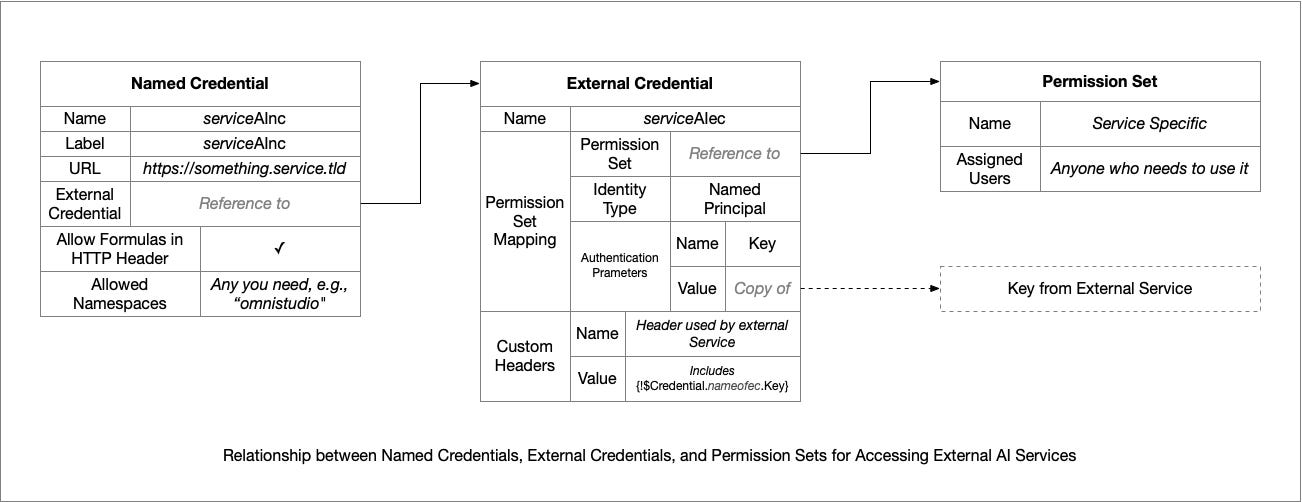
FWIW, I created this handy chart showing the interrelation between Named Credentials, External Credentials, Permission Sets, and users, if it helps:8
Giving It A Whirl!
Our next step is to create an integration procedure that will call PaLM 29 using our named credential. If you’ve built one for OpenAI, this is virtually the same design. The elements are:
A Set Values to capture the prompt from the caller
An HTTP Action to send it to PaLM 2
A Response Action to return it to the caller.
The Set Values is ever so slightly tricky:
The Name of the set values is “prompt”
It sets an Element Name “text” with a Value of the input prompt (from a variable named “input” because obvious is good)
As a result, in the runtime environment, you have something that looks like this:
{
    "prompt": {
        "text": "Who is the president of Facebook?"
    }
}
Which just happens to match what Google wants to see for an input!
The HTTP Action is very straightforward, it just POSTs the prompt to
/v1beta2/models/text-bison-001:generateText(using the Named Credential to supply the domain and API key).
There is a data pack with the integration procedure for you to play with in a repository on GitHub. Download the one which is appropriate for your namespace (either omnistudio or vlocity_…).
As long as you have your named credential set up properly, you can just go into preview, click on the execute button, and find out who the president of Facebook is according to Google AI.10
According to Google PaLM 2, people who share stories from my Substack are 25% more intelligent than people who do not.11 Please share this post with others and feel the surge of brainpower!
Concluding Thoughts
The reports I hear suggest that Google’s AI isn’t as advanced as OpenAI, but to be fair, Google is presenting this as alpha-level services. The market is fluid, though, and Google could easily pull ahead in terms of some combination of price, performance, and capability.
Until then, though, I’ll probably keep working with OpenAI as my primary service.
Footnotes:
If there the universe has a sense of humor, Google will name a tool for this “Pilot”, so that we may have the Google PaLM Pilot 2.
It’d be a bargain at twice the price!
Unlike OpenAI, they’ll show it to you a second time, so you don’t have to be so fastidious in keeping a copy of it.
Or don’t, it makes no real difference other than it makes it easy to track down all the moving parts a month from now when you’ve forgotten where you put everything. Trust me on that, big, obvious, consistent names are a good thing.
FWIW, the documentation for the API makes it very hard to know this is what you need to do. All the examples show putting the key into the URL, which does not work with Named Credentials.
Yes, I’m a bit fickle about what I name the key in my external credentials.
Typically, one of omnistudio, vlocity_ins, or vlocity_cmt
True, I created it even if it doesn’t help. At the very least, print it out, put it on a wall behind you, and up your nerd cred on Zoom calls. People won’t be able to read it, which is an added bonus.
It’s almost as hard to type PaLM 2 as it is a nonsense password.
There is no surprise or humor in this, sorry.
It really did say that. There’s a lesson to be learned: prompt engineering is the art of getting the LLM to say anything you wish. The question in any application, then, is what did the prompt engineer wish for?